By My IPTV Sub Support Team (Setup & streaming technicians). Published .
Nothing ruins a game night faster than a spinning wheel. The good news is that most IPTV buffering is caused by something inside your home, and you can fix it yourself in a few minutes. Below are ten fixes our support technicians use every day, in the order that solves the most problems first.
First: is it you or the stream?
Before changing anything, do a quick test. Open three or four different channels from different categories.
- If every channel buffers, the problem is almost certainly your connection, your Wi-Fi or your device. Start with fix 1.
- If only one channel buffers, that channel's source may be having trouble. Try again in a few minutes and let support know the channel name and the time.
1. Measure your real speed, on the TV
Speed tests on your phone next to the router don't tell you much. Run a test on the device you watch on. On a Firestick or Android box, install a speed test app; on a Smart TV, open the browser and visit a speed test site.
As a guide, you want about 10 Mbps per screen for Full HD and 25 Mbps per screen for 4K. If two TVs stream at once, add their needs together. If your result is lower, the fixes below help, but you may also need a faster internet plan. Our guide to internet speed for 4K IPTV explains the numbers.
2. Use an Ethernet cable
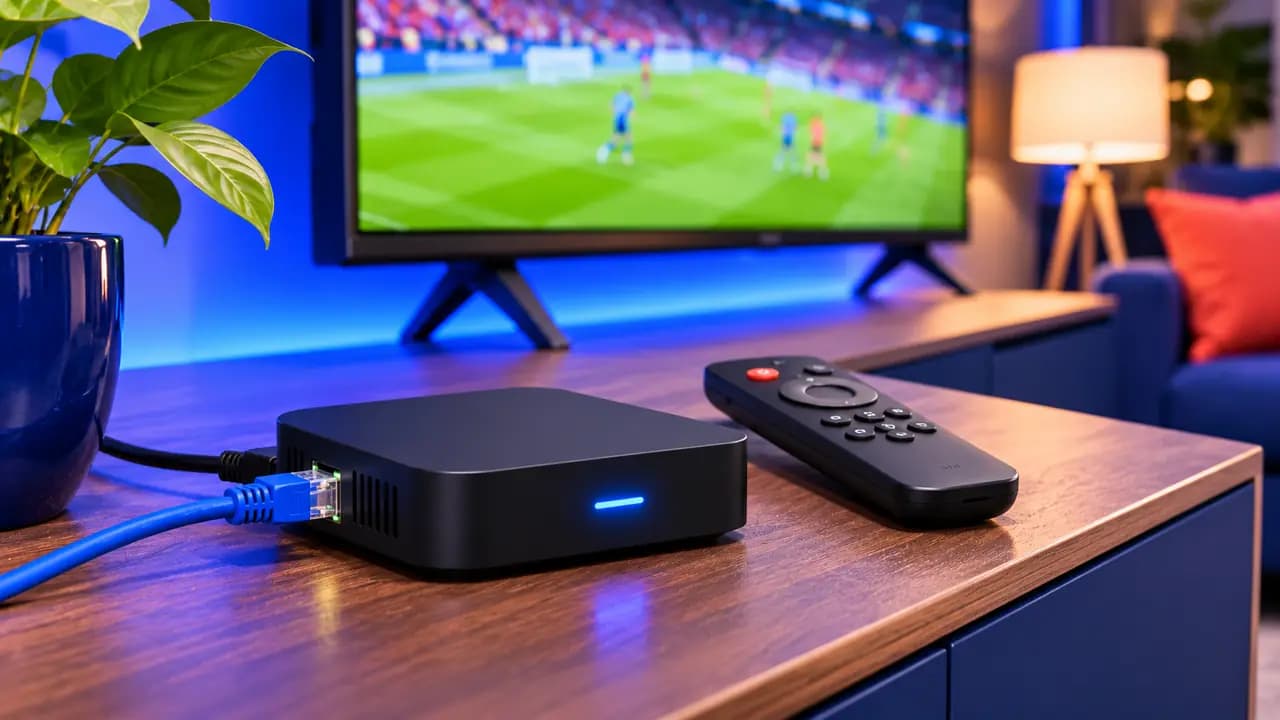
Wi-Fi is convenient, but walls, floors and neighbors' networks all slow it down. A cable from the router to your device removes almost all of that. Firesticks need an inexpensive Ethernet adapter; Apple TV 4K, Android boxes, MAG boxes and most Smart TVs have a port built in.
If running a cable isn't practical, a powerline adapter sends the connection through your home's electrical wiring and is often nearly as good.
3. Switch to 5 GHz Wi-Fi
Most routers broadcast two networks: 2.4 GHz and 5 GHz. The 5 GHz band is much faster and less crowded, though its range is shorter. If your router shows two network names, connect your streaming device to the one ending in "5G" or "5GHz". If it shows one name, your router picks automatically; moving closer helps it choose 5 GHz.
4. Move the router, or add a mesh node
Routers hidden in cabinets, behind the TV or in a basement corner lose a lot of signal. Put the router in an open, central spot and as high as you can. In larger homes, a mesh Wi-Fi system with a node near the TV makes a dramatic difference.
5. Restart everything, properly
Restarting clears memory and resets network connections.
- Unplug your router and modem for 30 seconds, then plug them back in.
- While they restart, unplug your Firestick, box or TV for 10 seconds.
- Once the internet is back, open the player again.
Unplugging works better than the power button, because many devices only sleep when you press it.
6. Clear the app cache
Player apps store channel lists, logos and guide data. Over time that cache grows and slows the app down.
- Firestick: Settings → Applications → Manage Installed Applications → your player → Clear cache.
- Android TV: Settings → Apps → your player → Storage → Clear cache.
- Smart TVs and Apple TV: delete and reinstall the app if it feels slow.
Clearing the cache does not remove your login.
7. Free up storage and memory
Devices with almost no free space struggle with streaming. Keep at least 1 GB free on a Firestick or Android box by uninstalling apps you don't use. Close other apps running in the background before you watch.
8. Change your DNS
DNS translates web addresses into server locations. Your internet provider's default DNS is sometimes slow. Switching to a public DNS such as Cloudflare (1.1.1.1) or Google (8.8.8.8) can speed up channel loading. You can change it on your router (it then applies to every device) or in the network settings of Android TV and some Smart TVs.
9. Tune your player settings
A few settings inside the player make a real difference:
- Buffer size: many apps let you set a larger buffer, which smooths over brief slowdowns.
- Player type or decoder: switching between hardware and software decoding can fix stuttering on some devices.
- Stream format: some apps let you choose between formats such as HLS and MPEG-TS. If one stutters, try the other.
- Quality: if your connection is borderline, choose the Full HD version of a channel rather than the 4K one.
If you are using an older app, switching to a better player helps too. See our list of the best IPTV player apps.
10. Check for other heavy users on your network
Large game downloads, cloud backups, security cameras and video calls all compete with your stream. If buffering always happens at the same time of day, look for something on your network that runs at that time. Many routers let you give streaming devices priority (often called QoS).
Device-specific fixes
Firestick and Fire TV
Firesticks have limited memory. Besides clearing the cache, turn off Data Monitoring and Collect App Usage Data in Settings → Preferences → Privacy Settings, which frees up resources. If you have a Firestick Lite on a large 4K TV, upgrading to a Fire TV Stick 4K Max makes a noticeable difference.
Samsung and LG Smart TVs
Built-in TV Wi-Fi is often weaker than a streaming stick. A short Ethernet cable is the biggest single improvement. Also restart the TV by unplugging it for 30 seconds, because the power button usually only puts it to sleep. Our Smart TV setup guide covers the app settings.
Apple TV
Apple TV 4K handles streaming very well. If you see stutter on sports, turn on Match Frame Rate in Settings → Video and Audio → Match Content. Make sure tvOS and your player app are up to date.
Android TV boxes
Cheap no-name boxes sometimes run out of memory. Close background apps, keep the box cool and ventilated, and use a well-known player app. An Nvidia Shield or a recent Chromecast with Google TV is a worthwhile upgrade for heavy use.
MAG boxes
MAG boxes are designed for wired connections. If yours is on Wi-Fi, move it to Ethernet. Restarting the portal from the settings menu also clears most stutter.
What about a VPN?
A VPN is not required. In a few cases, it can help if your internet provider slows down video traffic at busy times. In many others, a VPN adds distance and slows things down. If you try one, pick a server close to you, and if streams get worse, switch it off.
When it's time to contact support
If you've tried the fixes above and still see buffering, message our team with:
- The device and app you use.
- The channel name and the time it happened.
- Your speed test result on the device.
That information lets a technician check the stream on our side straight away. You'll find every way to reach us on the contact page.
Prevention checklist
- Ethernet or 5 GHz Wi-Fi for every TV.
- Router in an open, central place.
- Restart devices once a week.
- Clear the app cache once a month.
- Keep 1 GB free on streaming sticks.
My IPTV Sub streams are built to keep the picture moving at busy times, and these habits help your home network do the same. New to the service? Compare our IPTV USA plans or read the Firestick setup guide to get the best start.